


Glow Art Drawing - Doodle App
4.281.00 Reviews
App Specs
- Version
- 1.0.22
- Updated On
- License
- Free
- Downloads
- 5,000,000+
- Developer
- Braly JSC
- Categories
- Art & Design
- Platform
- Android
Screenshots
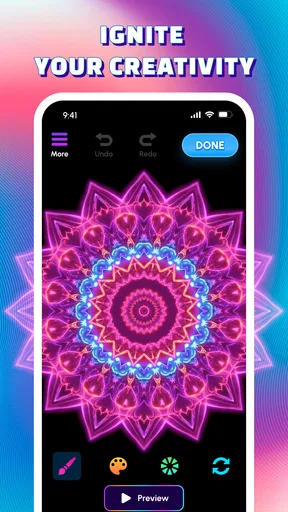
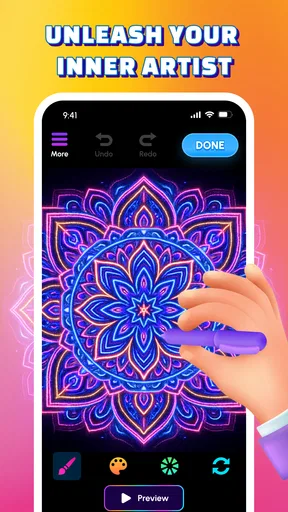
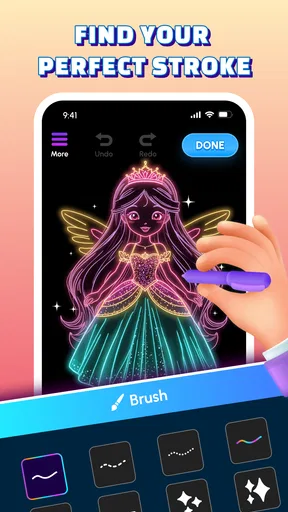
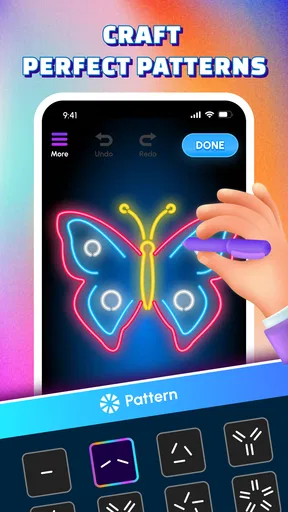
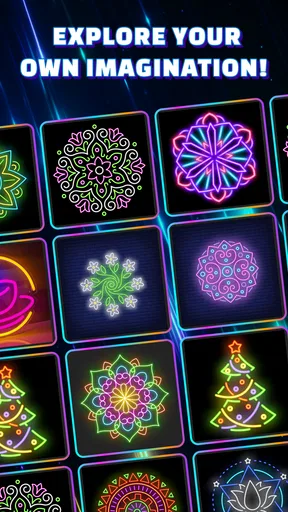
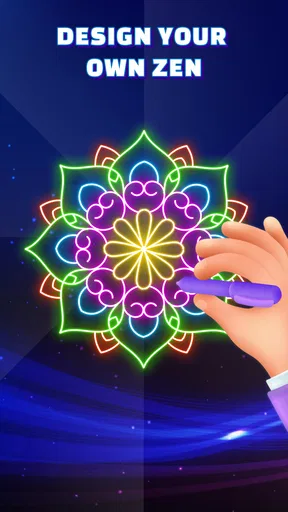
 Analysis by AppCompare
If you've ever found yourself doodling in the margins of a notebook during a meeting or while on a phone call, then you're going to love the Glow Art Drawing - Doodle App. This app takes the simple joy of doodling to a whole new level by adding vibrant colors and glowing effects that transform your simple sketches into dazzling works of art. So, grab your stylus or just use your fingers, and let's dive into what makes this app shine.
Starting with a Quick Doodle
I think this kind of drawing app makes the most sense when you have a small idea and a few spare minutes, rather than a finished illustration planned in advance. Maybe you want to sketch a bright little symbol for a message, make a playful image to send to a friend, or simply give your hands something creative to do while you listen to a call. The glow style gives even a rough line a clear visual identity, so the first mark can feel satisfying without a long setup.
That also sets a useful expectation: I would approach it as a casual art tool, not as a replacement for a full illustration workspace. A neon doodle can be expressive and fun, but the look is naturally more stylized than a detailed painting or a polished vector graphic. If you already know you need precise line work, extensive editing, or a subdued visual style, a conventional drawing app may suit that job better.
First Impressions and Interface
Firing up the Glow Art Drawing - Doodle App for the first time is like stepping into a digital art studio filled with neon lights. The interface is super user-friendly, which is great because nobody wants to spend hours trying to figure out how to start a doodle. Everything is laid out intuitively, with tools and options neatly organized for easy access.
The app greets you with a blank canvas, inviting you to unleash your creativity. The toolbar at the bottom provides all the essentials: a variety of brush sizes, a color palette that could make a rainbow jealous, and of course, the mesmerizing glow effect that sets this app apart from the rest.
Making a Drawing That Reads Clearly
When I start a piece, I find it helps to decide what should stand out before choosing colors. A glowing outline can easily become the whole image, so I would keep the main shape simple and use smaller accents to guide the eye. For example, a star with a clear outline and a few short marks around it can read more cleanly than a star crowded with several competing colors and strokes.
Brush size is worth treating as part of the composition, not just a comfort setting. A broad stroke can establish the shape quickly, while a thinner brush is better for small details and highlights. If I switch between the two with a plan, the finished doodle tends to look intentional; if I keep changing size without a reason, the glow can make the canvas feel busy. This is a practical trade-off of the effect: it adds impact, but it can also make overlapping marks harder to distinguish.
Worth Reading Before You Choose

Baby Panda World Brings Quick Play to Modern Phones, but Its Game Library Feels Busy

ESPN’s Live Game View Makes Following Close Games Easier

QuizzLand Review: A Good Fit for Short Trivia Breaks, Not Every Player

Basketball Stars: Multiplayer Is Fast, but Can It Recover When Matches Go Wrong?

WEBTOON Turns Phone Updates Into a Better Reading Routine

Link to Windows Runs on Shared Habits, Not Social Feeds
Getting Creative with Tools
This app offers a surprisingly wide array of tools for something that's all about simplicity and fun. You can choose from different brush shapes and sizes, allowing you to switch between intricate details and bold, broad strokes. The color palette is extensive, with countless shades and the ability to create custom colors, ensuring your artwork is as unique as you are.
The real magic happens when you start playing with the glow effect. You can adjust the intensity of the glow, giving your doodles a subtle shine or a full-on neon blast. This feature alone can make a simple line drawing look like a piece of futuristic digital art.
For a more controlled result, I would test the glow intensity on a small part of the drawing before applying the same look to every line. Softer light can leave room for the shape itself to do the work, while a stronger setting makes the effect the main attraction. That distinction matters if you are drawing something meant to stay legible at a glance, such as a simple icon or a short visual greeting. A dramatic glow may look exciting on the canvas but can compete with delicate details.
Custom colors are useful here for more than matching a favorite shade. I would pick a small group of related colors and reuse them across the drawing, rather than reaching for a new color every time I add a mark. That keeps an informal doodle from becoming visually scattered. It is also a handy way to make a set of small drawings feel connected if I am making several images for the same conversation or personal project.
Adding Movement Without Losing the Idea
One of the coolest features is the ability to animate your drawings. Yes, you heard me right! You can bring your doodles to life with simple animations that add a whole new dimension to your art. It's like having a mini animation studio in your pocket. Whether it’s a twinkling star, a glowing heart, or a bouncing ball, the possibilities are endless.
For a first attempt, I would animate one clear element rather than trying to make every part move. A small twinkle or a bouncing shape gives the viewer something to notice, while too much movement can distract from the drawing itself. This is especially useful when making a quick image to share: the animation can supply a little personality without requiring the underlying sketch to be elaborate.
I would also decide whether the drawing is meant to work as a still image or as motion before spending time on detail. A design that depends on a particular movement may not communicate as well when viewed as a static picture, and a carefully arranged still can lose some of its simplicity once animated. Thinking about the intended outcome early helps keep the process focused instead of treating animation as an automatic finishing touch.
Keeping Edits Manageable
Another neat feature is the layer system. It allows you to work on different elements of your drawing separately, making it easy to edit and perfect your masterpiece without affecting other parts. This is especially useful for those who love to experiment and tweak their art until it's just right.
Layers are most helpful when I give each one a purpose. I might keep a basic outline apart from decorative marks, or separate a central shape from its background accents. Then, if one part feels too crowded, I can focus my changes there instead of reworking the whole doodle. For a quick sketch, extra organization may be unnecessary; for an image with several colors or animated details, it can save frustration.
A simple workflow is to make the main shape first, check that it reads clearly, and only then add the glow and supporting details. I would avoid adding lots of decoration before deciding whether the central drawing works on its own. That order makes it easier to spot when the issue is the shape, the color balance, or the glow intensity, rather than changing several things at once and losing track of what improved the result.
From Canvas to Someone Else's Screen
Once you’ve created your glowing masterpiece, you’ll probably want to show it off. The app makes sharing your art a breeze. You can save your creations in high resolution, making them perfect for social media posts or even printing them out as posters. Whether you're sharing with friends or displaying your art online, the app ensures your work looks stunning in any format.
For an everyday example, imagine sketching a small glowing birthday card during a break, then sending it to a friend as a personal greeting. I would check the image at the size it is likely to be seen on a phone before sharing. Fine marks that look distinct on a large canvas may blend together when reduced, while a strong outline and a restrained palette usually remain easy to read. That quick preview is a simple way to catch a crowded composition before it leaves the app.
There is also a practical handoff between making the picture and using it elsewhere. If the goal is a social post, the image needs to stand on its own in a feed; if it is a message to one person, a playful, less polished drawing may feel more personal. I would save a version that feels finished before trying further edits, so a late experiment does not replace the version I actually want to share. The right final format depends on where the work is going, not just on how it looks while drawing.
Beyond the typical social media options, you can also join the app’s own community. It’s a great place to get inspiration, share your work, and even participate in challenges. It's like having a global art gallery at your fingertips.
Where This Style Fits—and Where It Doesn't
Glow Art Drawing is an app from Braly JSC in the art and design space. It is free, rated for Everyone, and has a 4.2 average from around 180 ratings, with over 1 million installs. Its current version is 1.0.18, and it runs on Android 7.0 or later. Those details make it easy to place: it is a widely used, approachable option for playful glowing sketches, rather than a specialist tool aimed only at experienced illustrators.
Compared with a general-purpose drawing app, its appeal is the emphasis on luminous doodles and quick visual impact. A broader art app may offer a better fit when you need a more traditional painting workflow or want to build an intricate illustration with lots of precise adjustments. A basic notes app is quicker for rough planning, but it will not give a sketch the same glowing look. I would choose this one when the effect is part of the idea, not merely because I need somewhere to draw.
It is particularly well suited to casual artists, younger users, and anyone who enjoys making small, expressive images without beginning with a blank page full of technical decisions. It can also be a pleasant tool for a designer who wants to rough out a playful visual direction before moving to a more exacting app. On the other hand, I would skip it for professional artwork that depends on fine control, a restrained finish, or a carefully managed production workflow. The strongest reason to use it is enjoyment and style, not maximum flexibility.
What to Expect from a First Session
If you are wondering whether you need a stylus, I would start with whichever input you already have. The app is presented as a straightforward doodling experience, and a finger is enough for loose shapes and playful marks; a stylus may feel more comfortable when you want narrower details. Either way, it is sensible to begin with a simple subject rather than expecting a first sketch to look like a finished poster.
A useful first-session exercise is to draw the same basic shape twice: once with a softer glow and once with a stronger one. Compare which version stays clearer, then add only a couple of accents. That small experiment shows how the effect changes the mood without requiring a complicated project. It also helps you find a style you like before you invest time in a larger drawing.
People often want to know whether this can replace their usual drawing app. In my view, it is better treated as a companion for a particular look than as a universal replacement. Its focused appeal is a plus when you want luminous, lively doodles, but the same focus is a limitation when a project calls for a different visual language. Keeping that distinction in mind makes the choice straightforward.
Final Thoughts
The Glow Art Drawing - Doodle App is more than just a digital sketchpad. It’s a vibrant playground for anyone who loves to draw and experiment with colors and effects. Whether you’re an aspiring artist or just someone looking to kill time creatively, this app has something for everyone.
Its ease of use, combined with a rich set of features, makes it a must-have on your mobile device. So, if you're ready to let your imagination glow, give this app a try and see your doodles in a whole new light!
Pros
- Intuitive interface for easy drawing.
- Wide range of vibrant glow colors.
- Smooth performance with no lag.
- Supports multiple layers for complexity.
- Export options in high-quality formats.
Cons
- Limited brush styles available.
- No option for cloud saving.
- Ads can be intrusive at times.
- Lacks collaborative drawing features.
- Requires in-app purchases for full access.
FAQs for Glow Art Drawing - Doodle App
What is Glow Art Drawing - Doodle App?
Glow Art Drawing - Doodle App is a creative platform designed for both beginners and experienced artists who enjoy doodling and drawing with a glowing effect. It offers a variety of brushes and colors, allowing users to create stunning art pieces with ease. The app is available on both Android and iOS platforms.
What features does Glow Art Drawing offer?
The app provides a range of unique features, including multiple brush types, vibrant color palettes, and a glow effect that enhances your artwork. Users can also enjoy layers for complex drawings and the ability to save and share their creations directly from the app. It’s designed to inspire creativity and provide a user-friendly experience.
Is Glow Art Drawing suitable for kids?
Yes, Glow Art Drawing is suitable for users of all ages, including children. The intuitive interface makes it easy for kids to navigate and create fun, glowing doodles. Parental controls and safety features ensure a secure environment, making it an excellent choice for young artists to explore their creativity.
Are there any in-app purchases in Glow Art Drawing?
Glow Art Drawing offers a free version with basic features, but users can access premium tools and additional content through in-app purchases. These might include advanced brushes, exclusive color palettes, and ad-free experiences. Users can choose to enhance their creative toolkit by purchasing these optional upgrades.
Can I share my creations from Glow Art Drawing on social media?
Absolutely! Glow Art Drawing makes it easy to share your artistic creations. Once you finish your artwork, you can save it to your device or share it directly to popular social media platforms like Instagram, Facebook, and Twitter. This feature allows artists to showcase their talent and engage with a broader audience.


